Showing posts with label android. Show all posts
Wednesday, March 9, 2016
[HOWTO] Automatically adjust adaptive brightness based on time/dawn/dusk (root required, sadly)
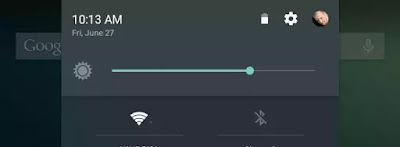
One of those options is that, besides the actual color temperature and amount of red, blue and green, it lets you configure the display brightness for when it's day, evening and night. But that's exactly where I ran into a bit of trouble because I use Android's Adaptive Display feature (the one that lets you set the display brightness but still gives the system some room to maneuver based on the amount of light the device detects in your surroundings). The problem is that apps can only set the system brightness when Adaptive Brightness is disabled. Which is stupid.
Luckily, Tasker comes to the rescue.
I'm not going into a lot of detail about what Tasker is and what it does and-so-on but lets keep it at this: Tasker lets you configure certain rules (called 'profiles') and do things (called 'tasks') based on those rules. And there are a LOT of plugins available for it, extending its not-so-limited standard feature set even more.
I found out that Android actually does provide for a "settings key" to change the brightness when the Adaptive Brightness feature is enabled[1]: "screen_auto_brightness_adj". And you can use that key by running a shell command with Tasker.
Now, you could of course just set a time and run the command based on that but - in most parts of the world - the sun doesn't come up and goes down at the same time of the day. Here's where the Tasker plugin Twilight comes to the rescue. It lets you create rules based on your location's dawn and dusk times!
So just a quick rundown (I'll update this section later but it's getting late right now so this'll have to do for now):
- Open Tasker and create a new profile > State
- Search for twilight, tap it and then the 'pen' icon
- Choose your from/until and confirm
- Create a new task, give it a useful name ("Brightness Night" or something)
- Add a command, search for "run shell"
- Paste "settings put system screen_auto_brightness_adj [value]" where [value] is between -1 and 1.
- Don't forget to check the 'run as root' option or it won't work.
- Confirm everything and in the Profile section of Tasker longpress the task you just created and choose "Add exit task"
- Create a new task, name it "Brightness Day" and repeat step 6 and 7 but now with the brightness value you want to use during daylight.
- Done! Keep pressing 'back' until Tasker exits (this is important, it seems Tasker doesn't actually save things until you do this!)
Thursday, December 31, 2015
[List] Best android tablet apps of now

In this post I'll be focusing on tablet apps. Most of those are centered around media consumption so in this post I'll use a slightly different approach compared to the others and list them per category.
Comic readers
One of the things I use my tablets for is reading comics but since I my collection is spread over various sources I use a bunch of apps for that.
If you own a large digital comic collection because you started collecting comics in the days before they were available digitally (and you digitized them yourself or.. uhmm.. found some other questionable(?) source) then ComicRack is the app to use for reading them. I've tested quite a lot of comic readers before settling on this one. It has a ton of options and can even sync your progress with the desktop app (if you have that installed). If you buy the pro version it does that over wifi, too.
Both Marvel and DC have their own comic reader app but if you look closely at who developed it you'll find that, in both cases, Comixology is the company behind the apps. So why bother with two separate apps when there is one that offers the same functionality and lets you buy comics from both publishers? Besides giving access to pretty much the entire catalogue of the two biggest comic publishers and others (the only one I find missing is Dark Horse?), Comics is a pretty feature complete comic reader app.
I wasn't planning on having Google apps in this list but for this post I'm making an exception. Why? Because it's just to darn nice to be able to buy content from the same source as you do for apps. Play Books got a nice update recently to make it easier to discover and read comics so if it's possible to buy a specific comic on the Google Play Store I do. It's not as feature complete as Comixology's app but instead of giving you a lot of option this app just does what it needs to and that's it. And sometimes 'simply works' is preferable to a lot of options.
Movies and series
There are currently two basic models for consuming payed video content: The one where you buy or rent something and the subscription model where you pay a monthly fee and can consume all the content you want. Google's Play Movies & TV service is of the former catefory. One of the reasons it's so good is because Google has a lot of experience with streaming videos thanks to Youtube. Besides working on a multitude of platforms besides Android if you have an internet connection (Chromecast, the web) you can also download movies on your Android device so you can watch them offline.
The idea is simple: you pay a monthly subscription fee (somewhere between 8 and 10 euros/dollars) and for that you get a access to a pretty large collection of movies and especially series that you can watch. One thing to keep in mind: their catalogue depends on which region you live in. The US and UK regions tend to offer more content but that's just my personal experience. Netflix is available on even more platforms than Google Play Movies (web, iOS, smart-tv's, chromecast, etc) so it's worth checking it out even if you don't plan to use your tablet for video consuming.
I've talked about this app before so go check out that post. I'll just say this: it's awesome :D
It's Youtube. Nuff' said.
Games
I don't often play games, but when I do, these are my top picks. Note: I'm not into casual gaming but you'll probably notice that if you look at the list below :)
Actually, you should check out the entire Broken Sword series - if you're into point-and-click adventures, that is. Even if you're not it's well worth a try as the Broken Sword series is one of the best in its genre.
Awesome take on the Hitman franchise. Its turn-based board game mechanics are completely different from the non-mobile games but somehow do make complete sense and the game utilizes sound design to really bring you into the Hitman universe.
Just like Hitman Go but with a subtle difference in gameplay and puzzles that align nicely with the Tomb Raider franchise.
This game has been available on iOS for ages but was released on Android sometime last year. The controls are a bit less intuitive than its PC/console counterpart but the pace of the game allows for this. It's not a cheap game but you get somewhere between 20 and 50 hours worth of gameplay and one of Bioware's best stories ever in return.
Except when it comes to Google apps. And I haven't talked about any of the apps I don't use on my phone but I think are crucial for tablets. I'll talk about those in my next(ish) post(s).
Anyway. Did I miss something? Do you disagree on one or more of my choices? Let me know!
Did I miss something?
This is it. I've listed pretty much every app I think that other people should have a look at. Sure, I use (a lot) more than just these apps but I'm quite confident that these are the best of them.Except when it comes to Google apps. And I haven't talked about any of the apps I don't use on my phone but I think are crucial for tablets. I'll talk about those in my next(ish) post(s).
Anyway. Did I miss something? Do you disagree on one or more of my choices? Let me know!
Wednesday, December 30, 2015
[List] Best android apps of now

I've seen a lot of "best apps [of 2015]" lists come by lately and I thought two things:
- They often contain apps that have been around before 2015. So the title is wrong?
- I can make a list of my own! How hard can it be?!
I've chosen to keep this post free of any Google app because most of those come pre-installed on Android devices anyway (even though some people insist on using alternatives). Neither will you find any apps I solely use on my tablets. Those are for another time and post.
One other thing: This list is sorted in alphabetical order. Not because I don't want to give the impression that there is some order of importance to them, but primarily because I'm literally going through my app drawer.
Anyway. My best apps of *now*:
Feedly
I've been using lots of apps to get my daily fix of news in the past but this app has replaced them all. It's just a lot nicer to maintain a single list of sources and being able to read them everywhere I go and on any device I use - whether it's on Android, iOS, pc or mac. Even though I do think that the team behind Feedly got some minor UI things wrong (like a reversed sharing icon.. WHY?!) and they require you to enter your Pocket username and password(!) if you want to save articles directly to pocket - even though Pocket has an API that works perfectly fine for adding, retrieving and modifying articles - it's just an awesome app that I can't do without these days.Oh, in case you're wondering: Feedly is basically a RSS reader that presents articles in magazine style. Other views can be configured and it offers all the other options I require.
Feedly on Google Play
Pocket on Google Play
Flynx
This app may not be a must-have for everyone, but it is for me. Flynx opens web links in a floating bubble that allows you to go on with your business and let the page load in the background. It's a lot like Link Bubble but improves on it in a few ways: It has an "article view" mode, for one, that strips pretty much all of the layout (and ads!) of a page and shows a clean article for you to read on. Secondly, it looks a lot cleaner - although that's just a matter of a less cluttered UI - and, in my experience, a lot less hungry when it comes to your device's resources.Flynx on Google Play
Icerrr
Okay this is just blatent self promotion. I'll keep it short: a free radio streaming app that lets you set alarms and isn't trying to be a social platform.Read more and download Icerrr
Material Player
The name of this app may be a bit misleading. It doesn't play materials, it's an audio book player. And it's pretty good! It has all the features one would want (good looks, snappy performance, keeping track of reading positions per book, snooze timers, etc). Why am I not using my default music app to listen audio books? Because when I want to listen to a song in-between I lose my reading position. By using a separate app I can safely listen to a book, listen to music and then come back to my book later on.Material Player on Google Play
Plex
If you own a hefty digital movie and/or series collection and a bunch of devices you want to be able to watch those on then Plex is the app for you. It's a free service that requires you to install a server app on your computer that can stream its entire local database to all of your devices, including (smart) TV's, chromecast, tablets, Apple TV, other computers (via its free web app), etc. It even works when you're at another location, for example at work or at your parent's during the holidays. Just open the right ports on your computer and router and of you go. It does require you to organize your collection in two categories - namely movies and series - to properly detect and recognize all of the videos but once you've done that it does its work pretty flawlessly and rarely makes a mistake matching a movie or series against a database.For a monthly fee you can add some bonus features but I found they are not really required. The Android and iOS app do cost money but you can watch and cast your movies from the web app or on your smart-tv for free.
Read more about Plex
Pocket Casts
I've recently discovered the world of podcasts and I think I'm already hooked for life - and Pocket Casts is the app I use to get my fix. It looks good, syncs your listening position between devices and platforms and has a sh*tload of other useful features like automatically downloading new episodes and deleting episodes that you've listened. It does cost money but it's not an absurd amount of it and to be frank: developers need to eat, too. The web app does cost a bit more but they deliver a great experience so it's probably worth it.If you are into podcasts, you want this app. There's not much more to say.
Pocket Casts on Google Play
Pushbullet
Another one of my favorite apps in the 'productivity/tools' category. Pushbullet started as an app that lets you push things like links, files and notifications between devices but it has grown to be much more than just that. It allows you to receive and send SMS messages from your computer or tablet via your phone, acts like a full blown messaging app and more.Recently, the Pushbullet team announced a Pro subscription plan and with that came limitations on some of the existing functionalities but in most cases you won't need it unless you really are a power user. I find the fee they ask to be a bit high for what I use it for but if you're a Pushbullet Power User and you use at least two of the pro features, it might be worth the bucks.
Besides the Android and (somewhat limited) iOS app they offer Chrome and Firefox extensions, a web app and desktop apps for Windows and Mac.
Pushbullet on Google Play
Root Explorer
Even though most of my devices are not rooted, Root Explorer is my weapon of choice when it comes to file management. Its looks are a bit outdated but its functionality is not: it does it all, from general file management to file and folder permission modifications (root obviously required for this), etc. A free version is also available (simply called Explorer), it basically lacks the root features.If Root Explorer's interface is a bit daunting for you I'd recommend Solid Explorer (free or paid version).
Root Explorer on Google Play
Talon
After Falcon started to show some weird issues which never got fixed even though I payed good money for it, I returned to my second-favorite 3rd party Twitter client: Talon. I came across some really good looking alternatives lately but since I don't feel like paying yet another fee for a not-horrible Twitter experience (I'm looking at you, Twitter) I'm staying with Talon and I'm very confident in that choice. It lets you register with up to two accounts, has lots of options when it comes to styling and organizing the UI, the developer is updating it with new features and fixes regularly and, in general, it's just a really good Twitter app. Nuff' said.Talon on Google Play
Weather Timeline
My favorite weather app. Why? Because its design is super simple yet manages to cram a lot of information in there and all that while still looking awesome (and maybe not like what you might have come to expect from a weather app). If that didn't convince you, it also boasts a ton of features like choosing a weather database that offers the most accurate results for your location, a bunch of notifications like daily forecast and "weather alarms", an android wear app and more.Weather Timeline on Google Play
WifiOpti 2.0
I've tried (and partially succeeded) in keeping the self promotion to a minimum in this list, but I couldn't resist when it comes to this little tool. WifiOpti 2.0 finds its origins in the Android Gingerbread (and earlier) days when wifi was a terrible thing to keep enabled when you weren't actively using it because it drained your battery like crazy. Thus, the idea was basically to have it manage when your wifi was on and more importantly: when it should be off. Since then a lot has changed and leaving wifi on is not so bad, especially now Google also uses it to keep track of your location without having to access the (even more) power hungry GPS sensor in your phone.So what does WifiOpti do? It primarily tries to remedy one of the last annoyances that still haunts wifi on Android: staying connected to a wifi access point that is pretty much out of reach even when others are available. It also helps prioritizing between hotspots and metered networks.
The interface may still need some work but since the primary function of WifiOpti is to do its job in the background and have you *not* micro manage things, you should not have to bother with it too much. Anyway, too much talk already. Just have a look here or continue straight onto the Play Store page below.
Note: WifiOpti 2.0 requires Android 4.4 or higher. On older devices you may also take a loot at its predecessor
WifiOpti 2.0 on Google Play
For the power users
DiskUsageA super simple app that visualizes disk usage on your device so you can quickly see what's taking up so much storage space and act on it.
System Monitor
The one app to replace them all when it comes to monitoring your device: cpu frequency statistics, memory usage, cpu usage per app, battery statistics, network usage, and more. And it has floating and homescreen widgets for most of those stats, too! A lite version is also available.
Tasker
Automate all the things. This app can really do it all - and if it can't, there probably is a plugin that extends its functionality to even fill that gap. It has a steep learning curve but once you master this app you are the true master of your device.
Wifi Analyzer
Doesn't look all that fancy and you probably won't need it often, but when you do you're glad you can. Wifi Analyzer offers a bunch of ways to view and compare wifi signals. Super useful when you want to figure out where to place your wifi router or on which frequency it should run.
Did I miss something?
This is it. I've listed pretty much every app I think that other people should have a look at. Sure, I use (a lot) more than just these apps but I'm quite confident that these are the best of them.Except when it comes to Google apps. And I haven't talked about any of the apps I don't use on my phone but I think are crucial for tablets. I'll talk about those in my next(ish) post(s).
Anyway. Did I miss something? Do you disagree on one or more of my choices? Let me know!
Sunday, November 29, 2015
[HOWTO] Viper4Android

I've been looking into audio boosters for Android and in my search I stumbled upon Viper4Android. It's pretty awesome but requires a bunch of installation steps and I found the documentation a bit incomplete and/or confusing - so much that, at some point, I found myself holding a (soft)bricked device. So here's what I did to get it to work.
NOTES
This guide is based on the steps I had to follow to get everything working on my Moto X 2013 running the official, stock Moto Android 5.1 rom. The actual (system version) version is 222.27.5.ghost_row.O2.en.DE.If you have any further tips or if you think I forgot something: give me a shout in the comments
REQUIREMENTS
- A rooted device with SuperSu (or a similar app) and BusyBox installed
- The Viper4Android FX (just download the zip, we'll cover its contents later)
- SELinux Mode Changer (not available through the Play Store because Google does not approve)
- A "root file explorer" like ES File Explorer or Root Explorer (I prefer the latter)
Recommended:
- USB debugging enabled (on the device)
- ADB installed on a pc
- An usb cable to connect the device with a pc
INSTALLATION
1. Make sure you are rooted, have SuperSU and Busybox installed
From what I've found it should not matter which busybox installer you use but it is recommended to use the app by 'Stephen (Stericson)' (which is linked above).
A note on SuperSU: If the driver won't install and says something about an incorrect or missing busybox installation: open the SuperSU app, go to settings and uncheck "Mount namespace separation". This further compromises the security of your device so you may want to try if disabling it is possible after installing the Viper driver (which we'll do a bit later on in this guide).
From what I've found it should not matter which busybox installer you use but it is recommended to use the app by 'Stephen (Stericson)' (which is linked above).
A note on SuperSU: If the driver won't install and says something about an incorrect or missing busybox installation: open the SuperSU app, go to settings and uncheck "Mount namespace separation". This further compromises the security of your device so you may want to try if disabling it is possible after installing the Viper driver (which we'll do a bit later on in this guide).
2. Open SELinux Mode Changer and set it to permissive
WARNING: this *does* somewhat compromise Android's ability to keep you safe from malicious software
You need to reboot your device now (if I remember correctly).
3. Now we need to modify a system file called build.prop
WARNING: this is the step where I messed up and almost bricked my device. Fortunately my mistake was fixed pretty easily but that's because I have some basic linux experience. If you don't, you'll probably still manage to perform the same fix but it may be a lot more abracadabra (read: you'll probably have NO idea what you're doing and thus risk even more damage).
- I STRONGLY recommend you make a backup using TWRP or CWM recovery so you can roll back any changes in case something goes awry. Another thing you might do is just create a backup of the build.prop file (copy it, paste it somewhere else)
- Open ES File Explorer or Root Explorer and navigate to /system
- Find the file called build.prop
- Edit the file by..
- ...opening it with a basic text editor on your device
- ...or send it to a pc via Dropbox, Drive, Pushbullet, etc and edit it there, then send it back to the device and copy it over the existing file
- You should get a dialog asking you if you want to change the permission on the file so you can overwrite it. You need this so do it. BUT DON'T FORGET TO CHANGE IT BACK once you're done. The numeric permission notation should say '0644' which is 'rw-r--r--'.
Here's what you need to change:
“Ipa.decode=true” to “lpa.decode=false”
“tunnel.decode=true” to “tunnel.decode=false”
“lpa.use-stagefright=true” to “lpa.use-stagefright=false”
If you can't find one (or more) of these properties: don't worry, in that case you don't need to change it :) Once you've finished editing it DO NOT FORGET to change the permissions back to read-only!!!
IF you forgot to restore the permission of the file you may follow this guide to fix it:
http://forum.xda-developers.com/showthread.php?t=1927198
IF you forgot to restore the permission of the file you may follow this guide to fix it:
http://forum.xda-developers.com/showthread.php?t=1927198
4. Unzip the Viper4Android FX zipfile and copy the correct apk file to your device.
Note: 2.3 for Android 2.3 and 4.x if you're running Android 4.0 or higher
5. Install the apk file and run the app
When asked for root access: grant it.
6. Install driver, select 'Power saver' driver mode and reboot
V4A needs to install a driver to work so this is the first step. After that it should show you three modes in which it can run. Choose the battery friendly one for now - you can change it later.
Don't forget to reboot your device.
7. Once rebooted, open V4A and check if it works...
Tap the overflow icon (the three dots in the upper right corner) and check if everything is working properly by going to Driver Status. It should say something like:
- Driver version ...
- NEON Enabled: Yes
- Enabled: ...
- Status: Normal
- Audio Format: Supported
8. And then check if it really works...
I recommend going to the headphone tab, enabling V4A at the top, then the Equalizer and select a preset. The change should be audible pretty much immediately.
If you're not sure what all the settings do you should have a look at this page:
http://vipersaudio.com/blog/?page_id=43
You're done! Unless it's...
9. ...not working..?
Have a look at the official troubleshooting guide
ACKNOWLEDGEMENTS
An excellent guide on Reddit:
And of course the installation guide on the official Viper Audio website:
Subscribe to:
Posts
(
Atom
)

